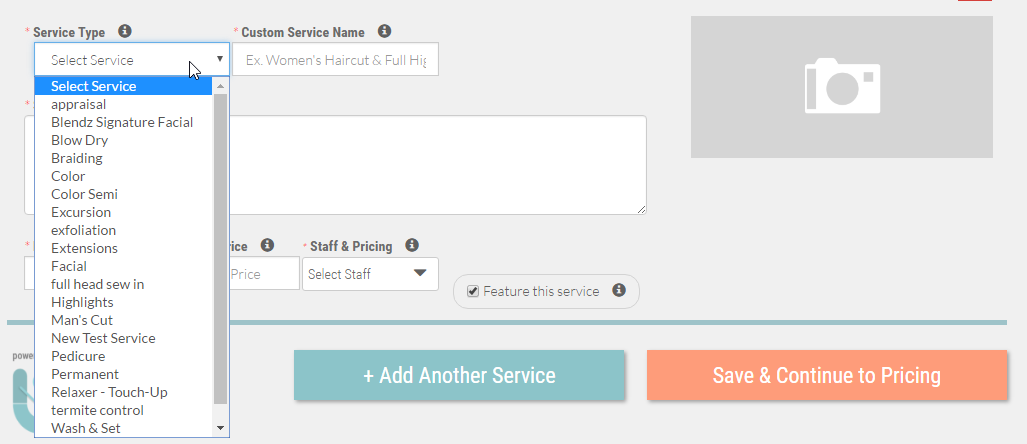
Add all the services you wish to offer online for customers to book. Once you have added all the services you want to offer online, then click Save & Continue to Pricing.
- Go to the Services page in your Company Dashboard menu.
- You can enter each of your services individually by entering service info for each, and then clicking Add Another Service until all are entered. Then, Save and Continue to Pricing. OR you can Import all of your services by scrolling to the bottom of the screen and clicking Import All Services Instead. If you import all your services, all services will appear and you can simply delete the ones you do not want. You will still need to select an image for each service.
- If adding individually, select the service you wish to add from the Type drop down list of your services.
- Search our image database to select an image to represent this service (note: you will have to select and crop the image before saving).
-
The service information from your MINDBODY or Bizlink Account will be automatically loaded into the duration, regular price, and custom name fields. You can edit any of these fields if needed.
Note: The Custom Service Name is the only service name customers will see. The service name appearing in the drop down is used for back-end purposes only. - Click Add Another Service and add repeat until all your services are added.
- Click Save & Continue to Pricing to set your variable pricing.