When adding services it is required that you add a photo for each service. If you do not have a photo to upload you can select a photo from our stock image database.
- Click on
 for the service you need to select an image for
 - Click

-
Search stock photo options by entering different search terms
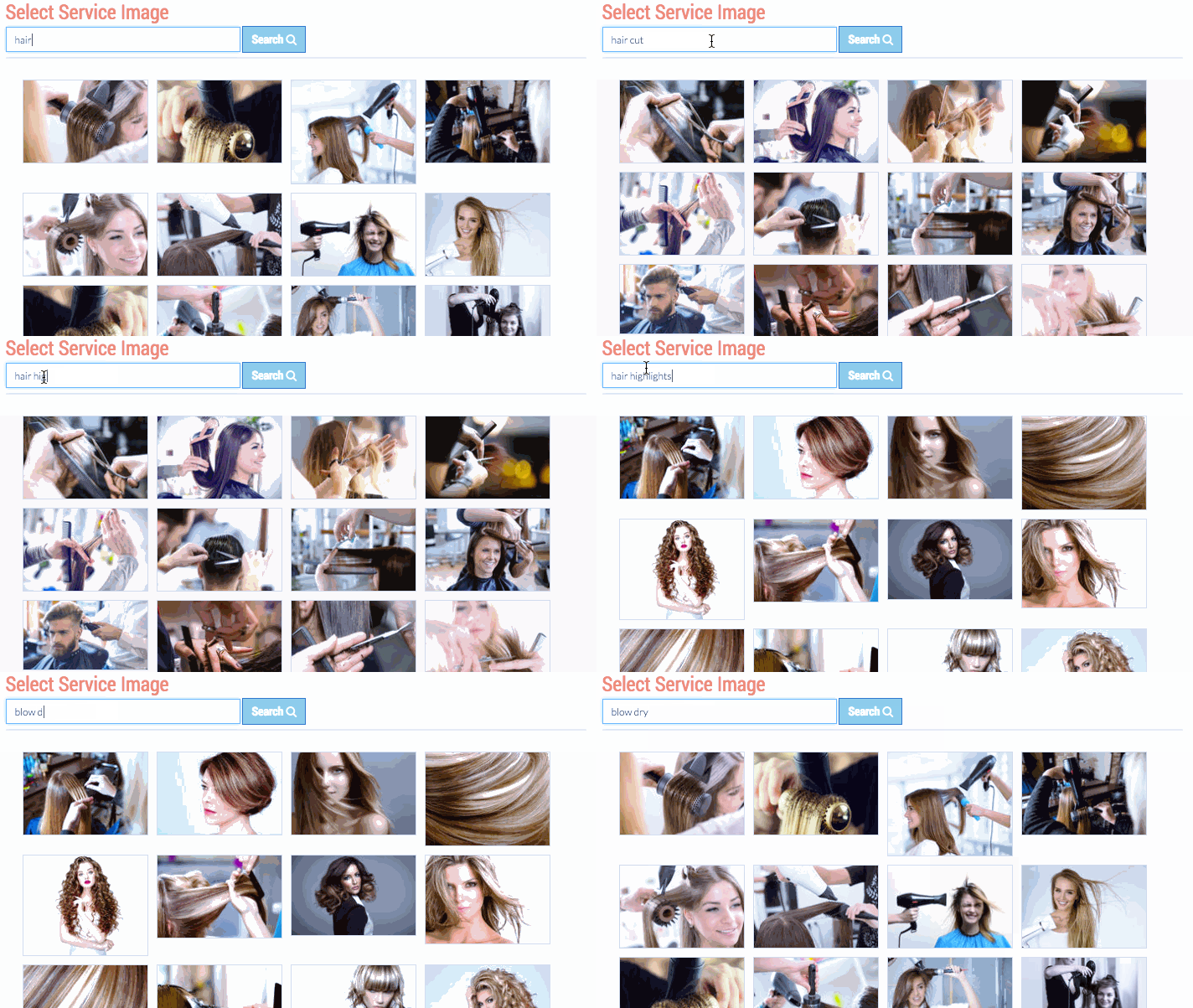 Note: the name of the service you are selecting an image for will be entered as the search term when it initially loads, you can enter any search term you'd like to view different stock photo options
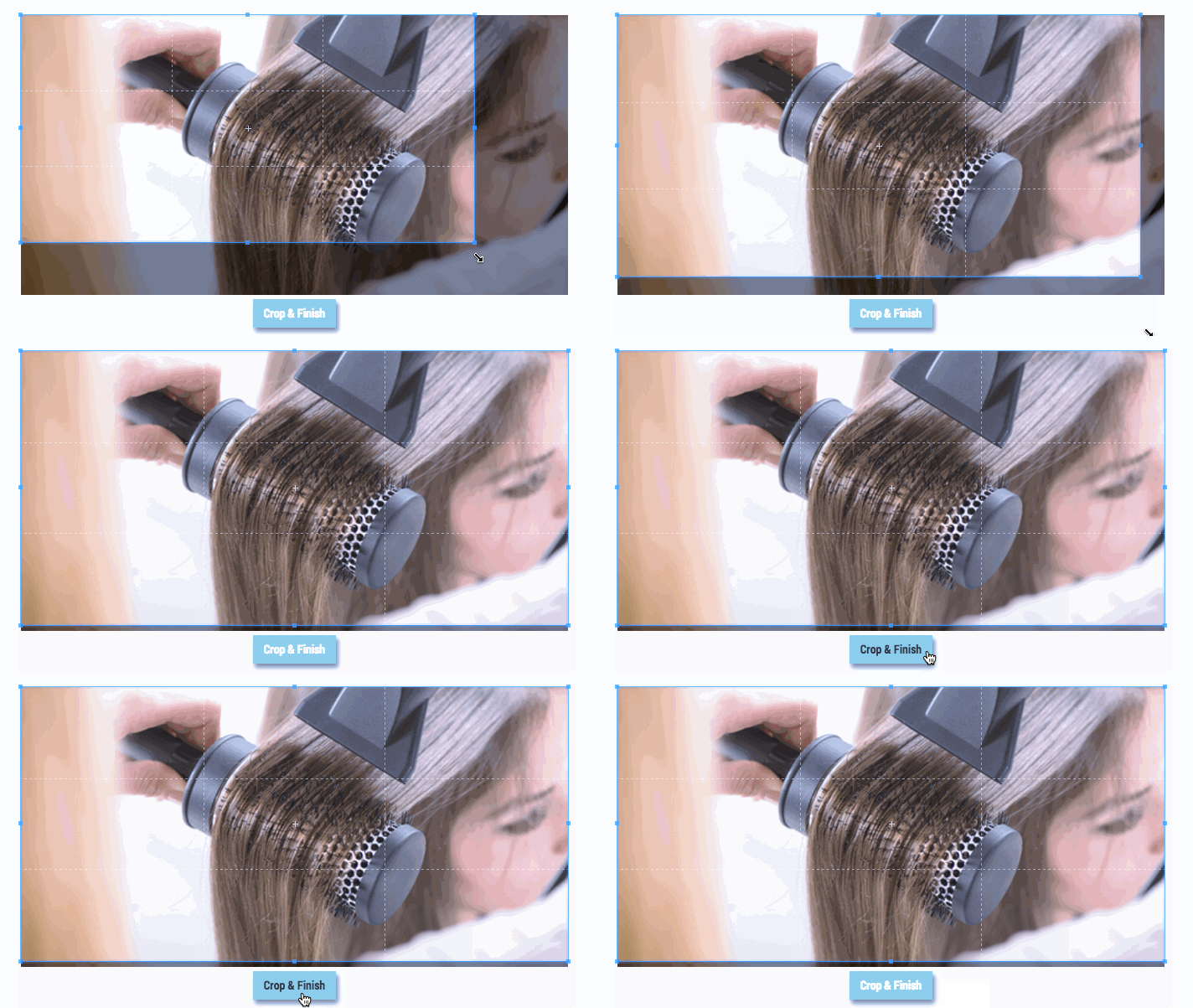
- Click on the photo you want to use and click "Crop me!"
- Select area of photo to use then click "Crop & Finish"